Send an invoice and get paid
Create an invoice, email it to a customer with a PDF link, and follow it from sent to paid.
Last updated
Before you start
- A customer name and email. Type a new one while you build the invoice.
- Default currency and tax set under Settings > Currency & Tax (optional).
- About 3 minutes.
Send an invoice
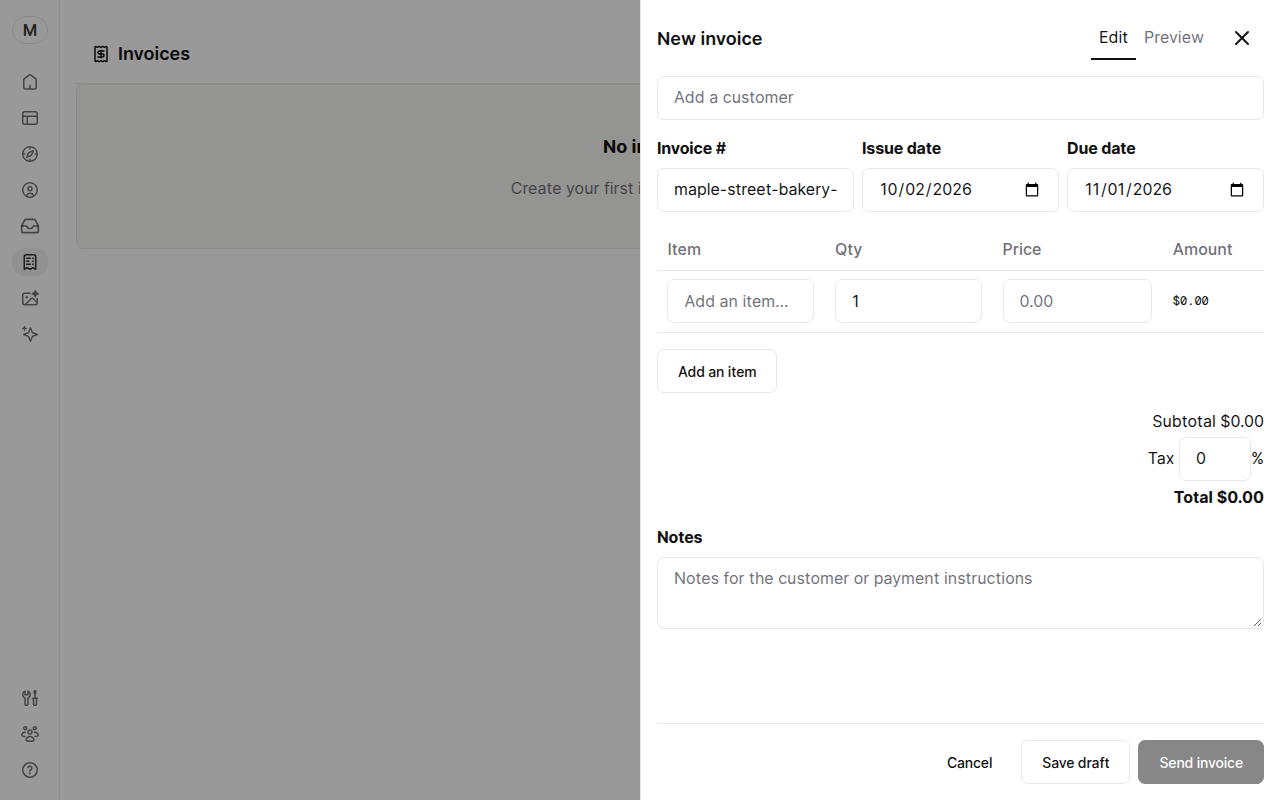
- Open Invoices and click New invoice.
- Type the customer's email in the Customer field, or pick an existing contact.
- Check the invoice number, issue date and due date. The due date starts 30 days after the issue date.
- Add each item with a description, quantity and price. Click Add an item for more lines.
- Enter the tax percentage if you charge tax.
- Add payment instructions or a thank-you in Notes.
- Click Send invoice. Click Save draft instead to finish later.
The customer gets an email with the total, the due date, a link to the PDF, and a pay link. The pay link is a card checkout when payments are connected (see Take card payments). Otherwise it is the payment link you saved in your business details, if you set one.
Follow it to paid
The list shows Draft, Sent, Paid, Overdue or Void. A card payment marks the invoice Paid on its own. If the customer pays another way, open the invoice and click Mark as paid. Open ⋯ and choose Void to cancel one you no longer want collected.
Open an invoice, click ⋯, and choose Email history to see what was sent and when. To get the PDF yourself, open the invoice and click the PDF icon.
Fix common problems
Send invoice is greyed out. Add a customer and at least one item with a price above zero.
"That invoice number is already used." Change the number in Invoice #.
The customer says the email never came. Open ⋯ and choose Email history to check the address, then ask them to look in spam. To chase it automatically, see Set up invoice reminders.
Was this guide helpful?
Still stuck? Email support@yaya.page.