Read your SEO and GEO score and fix items
Open SEO & GEO, understand the score and status label, and work through the checklist.
Last updated
Before you start
- A workspace for your business.
- About 10 minutes to read the screen and pick your first action.
Read the score
- Open SEO & GEO in the workspace.
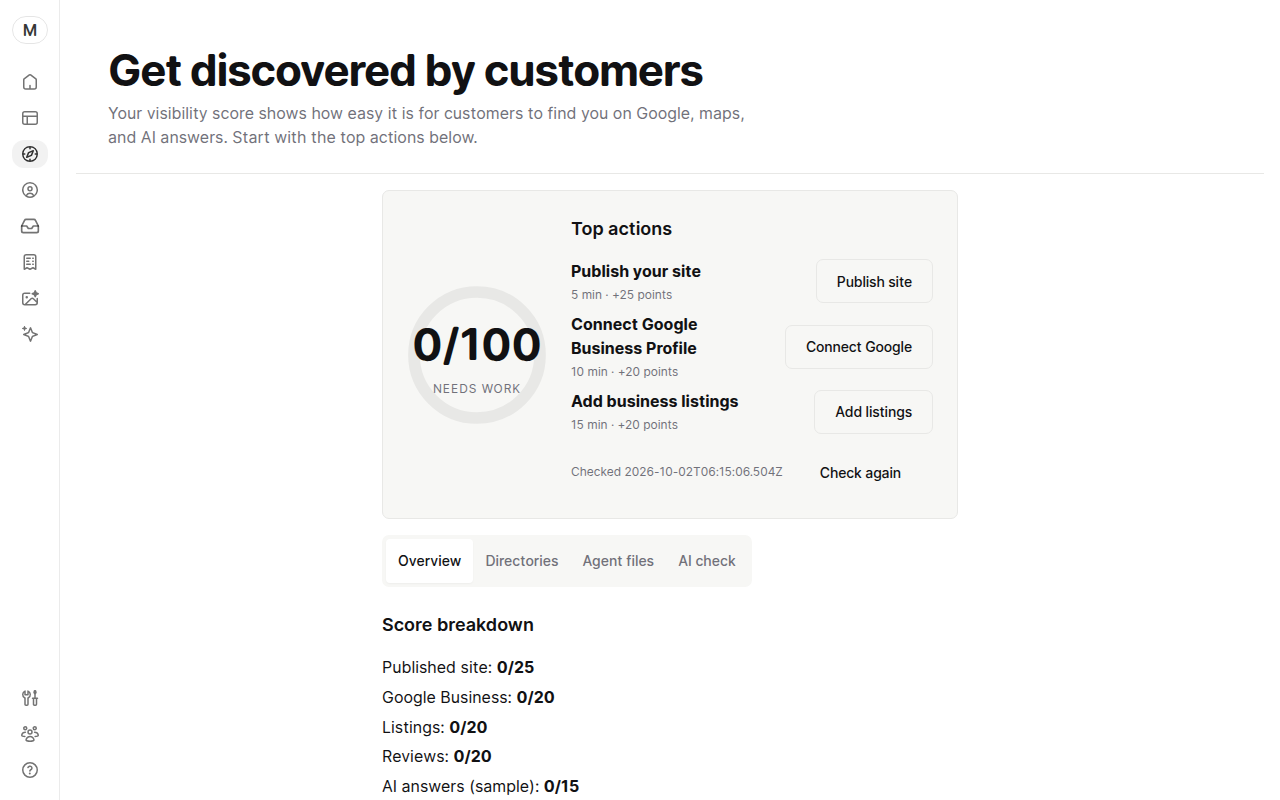
- Find the gauge at the top. It shows your score out of 100 and a status label.
The labels are Not visible at 0, Needs work (1 to 30), Growing (31 to 60), Strong (61 to 85) and Excellent (86 to 100).
Fix items
- Look at Suggestions to improve visibility. It lists the open items with a time estimate and the points each adds.
- Click the button on the first item, for example Publish or Set up.
- Finish the task on the screen it opens.
- Return to SEO & GEO. The score updates from your records.
To do shows open items. Done shows finished ones.
Run the AI sample check
- Open AI rankings.
The next step depends on whether your type and city are already saved in Settings > Business details.
Type and city already saved
The check uses the type and city from your business profile. A line shows your name, type and city. Click Refresh rankings. There are no type or city boxes.
Type and city not saved yet
- Enter your business type and city.
- Click Run sample check.
Add your type and city under Settings > Business details to skip the boxes next time.
The check counts how often your business appears in a fixed set of sample answers. It does not query live AI assistants. Only the workspace owner can run it, and there is an hourly limit.
Fix common problems
The score did not change. Reload the page, or leave SEO & GEO and come back. yaya reads the score from your records each time you open the screen.
Refresh rankings or Run sample check is missing. Ask the workspace owner to run it.
Search engines cannot find your files. Publish your site first. If it is published, turn on Show up in Google under Website > Settings.
Was this guide helpful?
Still stuck? Email support@yaya.page.