Write and publish a blog post
Write a post by hand or with AI, set its details, publish it, and find your posts again.
Last updated
Write a post
- Open Website in the workspace rail, then click the Blog tab. In the editor you can also click Pages > Add blog post.
- Click Add post.
- Click Write with AI to draft a post. Edit the prompt first. It starts with "Write a post about ".
- Click Start from scratch to type the post yourself.
- Use the toolbar above the body to format text.
- Click Settings and enter a Title. The field recommends 60 characters. The limit is 160.
- Click Create post.
Set the details
Open Settings to change these fields.
- Slug is the URL part of the post. Leave it empty to build it from the title.
- Author is prefilled with your business name.
- Date sets the date shown.
- Published controls whether visitors can read the post.
Leave Published unchecked to keep a post as a draft. Check it and click Save when you are ready.
Find and edit posts
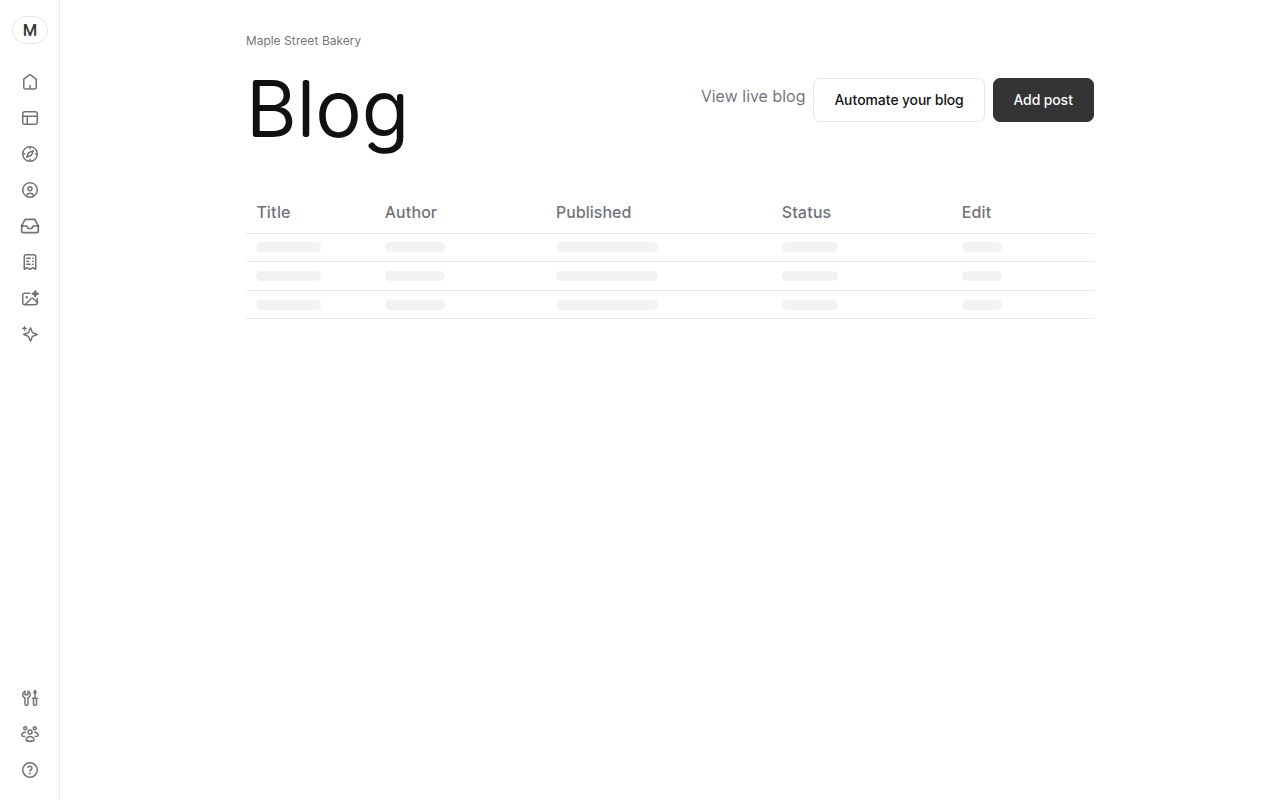
The Blog page lists every post with its Title, Author, Published date and Status. Click Edit to reopen one. Click View live blog to see the public page.
There is no delete button on this page. To hide a post, uncheck Published and save.
Fix common problems
Create post is greyed out. The post needs a title.
My post is not on the live blog. Check that Published is ticked. Then click Publish updates in the editor.
Was this guide helpful?
Still stuck? Email support@yaya.page.